
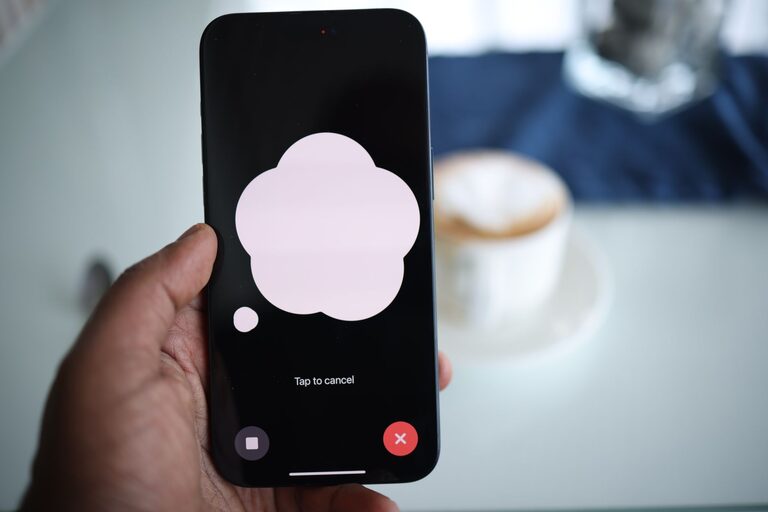
Smartphones offer many tools that can make everyday tasks easier, but the most helpful features are not always easy to find. Built-in accessibility settings can improve the way you read, hear, touch, and navigate your device.
Whether you want larger text, clearer sound, fewer distractions, or easier controls, a few small changes can make a noticeable difference. Most newer iPhone and Android devices include similar options, although the names and menu locations may vary.
Start With Accessibility Settings
The quickest way to find helpful tools is to open your phone’s Settings app and search for “accessibility.” On an iPhone, accessibility options are grouped under Accessibility. On many Android phones, they may be found under Accessibility or Accessibility and convenience.
Before changing several settings at once, try one feature at a time. This makes it easier to understand what each setting does and return to the original setup if needed.
Useful categories often include:
– Vision and display
– Hearing and sound
– Touch and movement
– Reading and captions
– Voice control
– General navigation
Make Text Easier to Read
Small text can be difficult to read, especially in apps with crowded screens. Increasing the text size is one of the simplest accessibility improvements.
Look for settings such as:
– Font size
– Display size
– Larger text
– Bold text
– High contrast text
– Screen zoom
On an iPhone, you can usually adjust these options under Display and Text Size. Android phones often include font and display size controls under accessibility or display settings.
Adjust Text Size Carefully
Larger text can make messages, websites, and menus easier to read. However, very large text may cause some buttons or lines to move on the screen. Try a moderate increase first and check the apps you use most.
You may also be able to turn on bold text or choose a clearer font style. These changes can improve readability without making everything much larger.
Improve Screen Contrast and Color
Contrast helps separate text, icons, and buttons from the background. If screen elements blend together, try increasing contrast or reducing transparency.
Helpful options may include:
– Increase contrast
– Reduce transparency
– Dark mode
– Light mode
– Bold text
– Color filters
– Color correction
Dark mode can be more comfortable in dim surroundings, while light mode may be easier to read in bright spaces. The best choice depends on your environment and personal preference.
Color filters or color correction tools can change how colors appear on the screen. These settings may help when certain colors are difficult to tell apart. You can usually preview the changes and turn them off at any time.
Use Magnification Tools
Most smartphones include built-in magnification features. These tools enlarge part or all of the screen without permanently increasing the size of every item.
Depending on your phone, you may be able to:
– Zoom in with a three-finger tap
– Use a magnification shortcut
– Enlarge selected text
– Magnify objects through the camera
– Temporarily zoom into a webpage or image
Magnification is useful for reading small labels, viewing detailed images, or checking information in an app. Learn the shortcut for turning it on and off so it does not remain active accidentally.
Turn On Spoken Feedback
Screen readers can read text and describe buttons, icons, and other items aloud. This can help people who prefer audio information or have difficulty viewing the screen.
Apple devices include VoiceOver, while Android devices commonly include TalkBack. These tools change the way you select and open items, so it is helpful to review the built-in tutorial before using them regularly.
You can also use text-to-speech features without turning on a full screen reader. Options may include:
– Speak selected text
– Read screen content aloud
– Text-to-speech settings
– Spoken notifications
– Audio descriptions for supported videos
These tools can be especially useful when reading long articles, messages, or instructions.
Make Touch Controls Easier
Small buttons and precise gestures can be challenging. Accessibility settings can make touch controls more forgiving or provide alternatives to tapping and swiping.
Look for features such as:
– Touch accommodations
– Touch and hold delay
– Ignore repeated touches
– AssistiveTouch
– Switch access
– One-handed mode
– Larger touch targets
On iPhone, AssistiveTouch creates an on-screen menu for common actions such as going home, adjusting the volume, taking a screenshot, or opening the control center. Android phones may offer an accessibility menu with similar shortcuts.
If your phone reacts too quickly or too slowly to a touch, adjust the touch-and-hold duration. A longer delay can reduce accidental actions, while a shorter delay may make menus feel more responsive.
Simplify Navigation
Many phones offer shortcuts that reduce the number of steps needed to complete common tasks. You can often customize navigation buttons, gestures, or quick settings.
Consider trying:
– On-screen navigation buttons instead of gestures
– A simplified home screen
– Larger app icons
– A favorite contacts widget
– Quick access to brightness and volume
– Back Tap or similar gesture shortcuts
– A home screen with fewer apps
Removing unused apps and moving important tools to the first home screen can make your phone easier to navigate. Group similar apps into clearly named folders, such as “Messages,” “Travel,” or “Reading.”
Some Android devices include a simple or easy mode that increases icon size and reduces visual clutter. Check your display or home screen settings to see whether this option is available.
Improve Hearing and Audio Access
If phone calls, videos, or alerts are difficult to hear, several settings may help.
Try these options:
– Increase call or media volume
– Turn on captions
– Use mono audio
– Adjust left and right audio balance
– Enable hearing device compatibility
– Set visual flash alerts
– Choose a stronger ringtone or vibration
Captions can make videos, voice messages, and online meetings easier to follow. Many apps provide their own caption settings, so check both the phone and the individual app.
Mono audio sends the same sound to both sides of headphones. This can help when stereo audio separates important sounds between the left and right channels.
Visual alerts, such as a flashing screen or camera light, provide another way to notice calls and notifications without relying only on sound.
Use Voice Commands
Voice controls can reduce the need for typing, tapping, and swiping. Built-in assistants can help with tasks such as:
– Calling a contact
– Sending a message
– Setting a timer
– Opening an app
– Checking the weather
– Creating a reminder
– Searching for information
Voice typing can also be useful for writing messages or notes. Speak clearly and review the text before sending, since automatic transcription may make mistakes.
For privacy, review which voice features are active and which apps can use your microphone. You can turn off voice access whenever you do not need it.
Reduce Distractions and Motion
Animations, automatic video playback, and frequent alerts can make a phone feel busy. Accessibility settings often let you reduce motion and manage notifications.
Try turning on:
– Reduce motion
– Remove animations
– Reduce flashing effects
– Do not disturb
– Notification summaries
– Larger or longer notification previews
You can also silence notifications from apps that are not important. Keeping only essential alerts makes it easier to notice messages and reminders that matter.
Create a Shortcut for Helpful Features
If you use an accessibility tool often, create a shortcut for it. Phones may let you activate a feature by pressing a button combination, tapping the back of the phone, using a control center option, or selecting an accessibility button.
A shortcut can quickly turn on magnification, spoken feedback, color filters, or a larger display. Test the shortcut several times so you know how it works before you need it.
Review Your Settings Regularly
Accessibility is not a one-time setup. Your preferences may change depending on the room, lighting, task, or app you are using.
After making changes, test your phone by:
- Reading a text message.
- Making a phone call.
- Watching a captioned video.
- Opening your most-used apps.
- Adjusting the volume and brightness.
- Turning each feature on and off.
If a setting makes another task harder, change it or look for a different option. The goal is to create a phone experience that feels comfortable, clear, and easy to control.
With a few adjustments, your smartphone can become more flexible and convenient. Explore the accessibility menu, try small changes, and keep the features that make daily use simpler.