
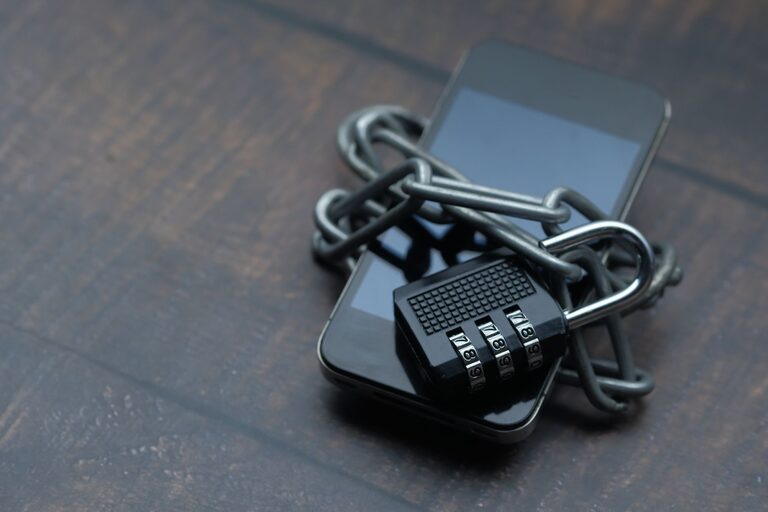
Why Smartphone Privacy Matters
Your smartphone stores a large amount of personal information in one place. Photos, messages, contacts, email accounts, saved passwords, location data, and payment details may all be accessible through the device. If your phone is lost, stolen, or compromised, this information could be exposed.
The good news is that a few regular habits can greatly improve your privacy and security. You do not need to be a technology expert. Start with the basics, then review your settings from time to time.
Use a Strong Screen Lock
A screen lock is your phone’s first line of defense. Choose a strong passcode instead of a simple pattern or an easy-to-guess number such as a birthday.
Good screen lock practices
- Use a passcode with at least six digits, or choose a longer password if your phone allows it.
- Avoid birthdays, addresses, phone numbers, and repeated numbers.
- Turn on fingerprint or face recognition for convenience, but keep a strong passcode as a backup.
- Set your phone to lock automatically after a short period of inactivity.
- Hide message previews and other sensitive alerts on the lock screen.
Biometric features can make it easier to keep your device locked. However, you should still know your passcode because the phone may request it after a restart or during certain security checks.
Keep Your Phone and Apps Updated
Software updates often include security improvements. They may fix weaknesses that could otherwise allow unwanted access to your device or accounts.
Turn on automatic updates for your phone’s operating system and apps whenever possible. If automatic updates are not available, check for updates regularly. Download them through your phone’s official settings or app store rather than through links in unexpected messages.
Remove apps that no longer receive updates or that you no longer use. Older, unsupported apps may create unnecessary risks and take up storage space.
Review App Permissions
Many apps request access to features such as your camera, microphone, contacts, photos, location, or files. Some permissions may be needed for an app to work, but others may not be necessary.
Review permissions in your phone’s privacy or app settings. Ask yourself whether each request makes sense. For example, a calculator app may not need access to your contacts or microphone.
Permission tips
- Allow location access only when it is needed.
- Choose “while using the app” instead of continuous location access when available.
- Limit access to photos by selecting only the pictures an app needs.
- Disable microphone or camera access for apps that do not require those features.
- Delete apps that ask for excessive permissions without a clear reason.
Check these settings after major phone updates because permission options may change.
Use Unique Passwords and Multi Factor Authentication
Reusing one password across several accounts creates a serious problem. If one service is exposed, someone may try the same password on your email, shopping, or social accounts.
Use a different, strong password for every important account. A password manager can help you create and store unique passwords without requiring you to memorize them all.
Turn on multi factor authentication, sometimes called MFA, for email, cloud storage, social media, and other important accounts. This adds a second verification step, such as a code from an authentication app or a security key. It can help protect an account even if someone learns your password.
Your email account deserves special attention because it may be used to reset passwords for many other services.
Be Careful With Links and Messages
Scammers often send messages that create urgency. A message may claim that your account is locked, a package needs attention, or a payment must be confirmed. The goal is often to make you click a harmful link or share private information.
Before responding, pause and check the message carefully. Do not use contact details or links provided in an unexpected message. Instead, open the official app or type the organization’s website address yourself.
Watch for:
- Unexpected requests for passwords, verification codes, or payment details
- Urgent language that pressures you to act immediately
- Unusual sender addresses or phone numbers
- Links with misspellings or unfamiliar web addresses
- Messages asking you to install an app or allow remote access
Remember that legitimate organizations generally do not need you to share a one-time security code with another person.
Secure Your Wireless Connections
Use a password-protected home Wi-Fi network with a strong network password. Update the router’s default administrator password and keep the router’s software current when updates are available.
Public Wi-Fi can be useful, but avoid entering sensitive information on networks you do not recognize or trust. When using public internet access, look for the lock symbol and the correct website address before signing in. Turn off automatic connection to open networks so your phone does not connect without your knowledge.
When you are not using Bluetooth, mobile hotspot, or nearby sharing, consider turning those features off. This can reduce unwanted connection requests and help conserve battery life.
Protect Photos, Files, and Backups
Review which photos and files are stored on your phone and in cloud services. Use a reputable backup service and protect the account with a unique password and multi factor authentication.
Be cautious when sharing photos. Images can reveal more than expected, including documents, home addresses, travel plans, or information visible in the background. Check the recipient before sending private files, and remove shared access when it is no longer needed.
Avoid storing highly sensitive information in plain text notes. If you must keep private information on your phone, use a trusted app designed to protect stored data.
Turn On Device Finding Features
Enable your phone’s built-in device finding service. These features can help you locate a misplaced phone, play a sound, display a contact message, or remotely erase data if the device cannot be recovered.
Set up this feature before your phone is lost. Review the account recovery options as well, since you may need to sign in from another device.
If your phone disappears, contact your mobile carrier and change important account passwords. You should also report the loss when appropriate.
Review Your Privacy Settings Regularly
Privacy is not a one-time setup. Apps, accounts, and operating systems change over time, so schedule a quick review every few months.
Check:
- Apps installed on your phone
- App permissions and location access
- Connected devices and active account sessions
- Saved passwords and recovery methods
- Cloud backup and sharing settings
- Lock screen notifications
When you sell, recycle, or give away your phone, back up the information you need, sign out of accounts, remove the SIM or memory card, and perform a factory reset. These steps help prevent the next user from accessing your data.
Make Privacy a Daily Habit
Protecting personal information on a smartphone does not require complicated tools. Use a strong lock, install updates, limit app permissions, choose unique passwords, and think carefully before clicking links or sharing information.
Small actions make a difference. By reviewing your settings and staying alert to unexpected requests, you can keep more control over the personal information stored on your smartphone.